
TAGS - Help and how to
Which browser?
TAGS works best in Google Chrome. It will also work (but more slowly) in Firefox.
Set up an account.
To upload and analyze private datasets, you must establish and account. You can do so, by accessing the main TAGS website (http://tags.animalmigration.org), clicking on "login," and then "Create new user." You will then need to provide a username, email address, and password.
How to upload data:
Uploading data is usually straightforward provided that you use the correct browser (Firefox or Chrome) and that your data are in one of the accepted formats (see examples).
1.) Go to the TAGS website (http://tags.animalmigration.org). To upload private data, click "login" and enter your username and password. You must first have an account (see above). To upload public data do not log in.
2.) Click on “Upload a new datastet”
3.) Choose the file that contains your data
4.) Fill out the information that is requested (Name, Species, Notes, Release Information, Recapture Information)
5.) Once complete, click “Upload Dataset” It should now appear on the list of uploaded data sets that you can analyze.
How to analyze a dataset:
1.) Click on Dataset you wish to work with
2.) Click on GeoLight>> link
3.) You should see a graphical rendering of all of the data points that you have submitted with the problem areas highlighted. problem areas are parts of the data set where the light level is noisy and crosses the threshold sevaral times in quick succession. Use the mouse on the red arrow to adjust the threshold or type the desired threshold into the appropriate field in the manual data entry box. To navigate around the light profile graphic, use the mouse to manipulate the data view box. Drag the edges of the box to change its size (and the extent of the data shown above), and drag the middle of the box to change the position of the box (and the section of data shown).
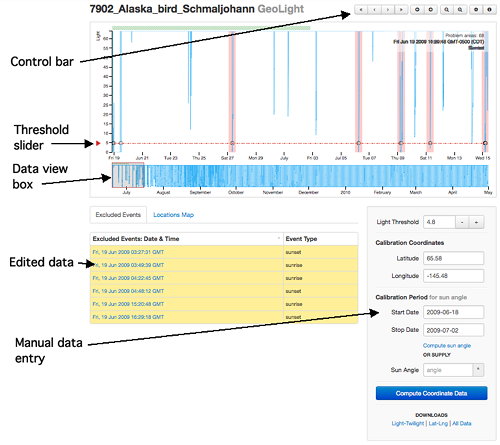
The controls at the top right of the chart can also be used to zoom in to navigate the data.
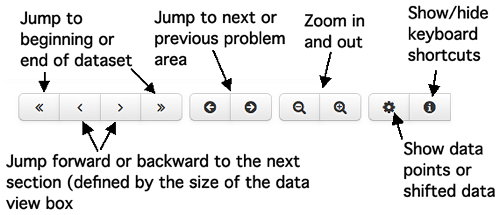
10.) Deal with each of the problem areas by clicking on the potential twilight times that are likely caused by shading. When you click on these erroneous twilights, they are deleted from the analyzed data set, and a record of the deleted data is compiled below the graphed data. The number of remaining problem areas is shown at the top right corner of the graph. This number ticks down as you remove erroneous twilights. You may also delete other twilight events if you wish.
11.) When all problem areas are removed, provide calibration information in the manual data entry box. The calibration information consists of a date range for which the tag was at a known location and the coordinates of that location. TAGS uses this information to calculate a sun angle that corresponds to the threshold light level defined earlier. Begin this calculation by clicking "Compute sun angle." Alternatively, you can enter a sun angle manually (based presumably on previous analyses).
12.) When the sun angle has been calculated, click on "Compute coordinate data." After a few seconds, you should see a display of the coordinate data on a map of the world. You can use mouse scrolling to zoom the map and shift the field of view. There are also zoom controls at the top left corner of the map.
13.) You can investigate individual location points by clicking on them. When you click on a point, the graphical view of the raw light level data snaps to the date that corresponds with the selected point. You may then delete that point if you so desire, and the action is recored in the list of deleted points.
How to download results :
Click on one of the links below the "Compute coordinate data" button to download the corresponding output file.
Troubleshooting
PROBLEM: Cannot upload data.
POSSIBLE CAUSES
1) Data is not in one of the accepted formats (see uploading data and example data sets above)
2) Unspported browser.
POSSIBLE SOLUTIONS:
1) Reformat the data
2) Use Firefox or Chrome.
PROBLEM: Locations are incorrect or shifted in one direction.
POSSIBLE CAUSES
1) Software bug that is manifested when the tag crosses the international date line.
POSSIBLE SOLUTIONS:
1) None at the moment.


